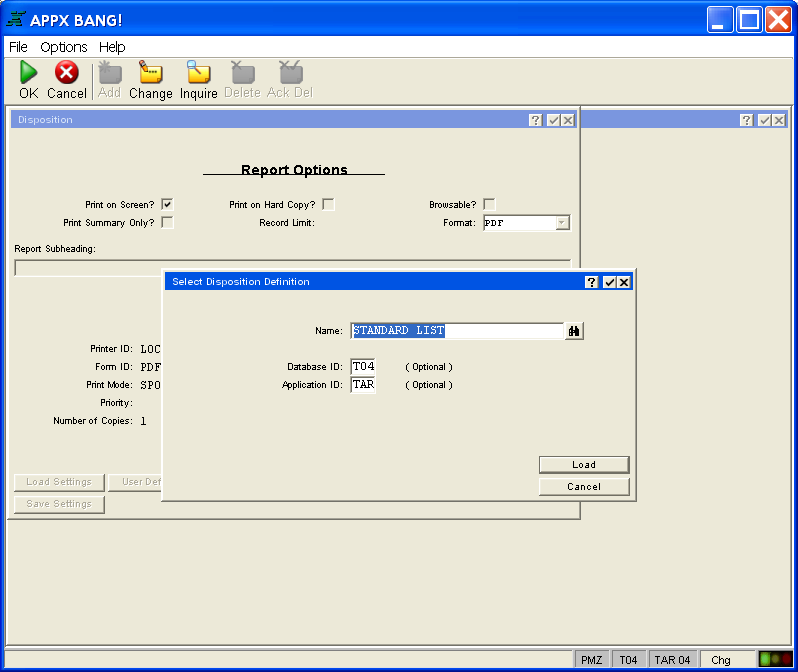
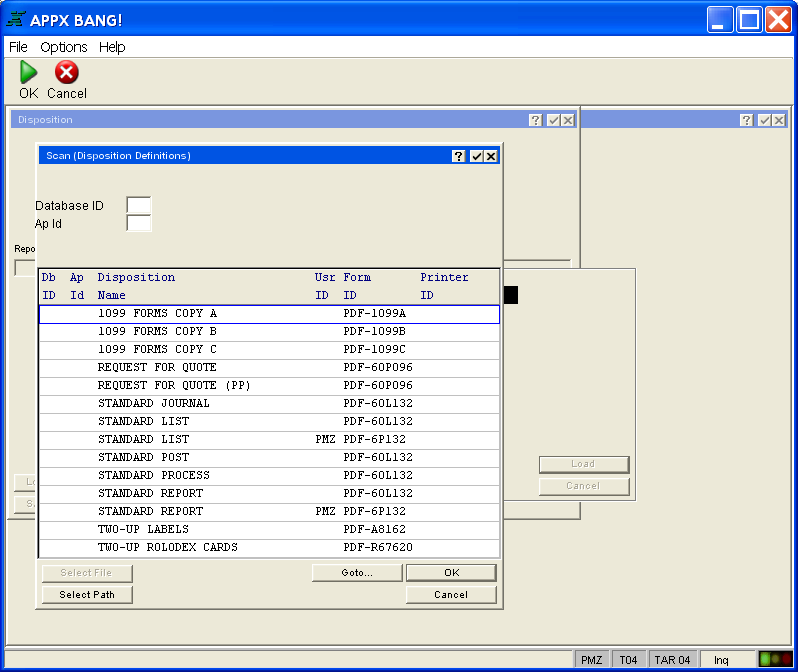
Load Settings allows you to change the current disposition to a disposition that you previously defined and saved. You can scan the disposition name, database ID and Application ID fields to make your selections. See the examples shown in Figures 20 and 21.
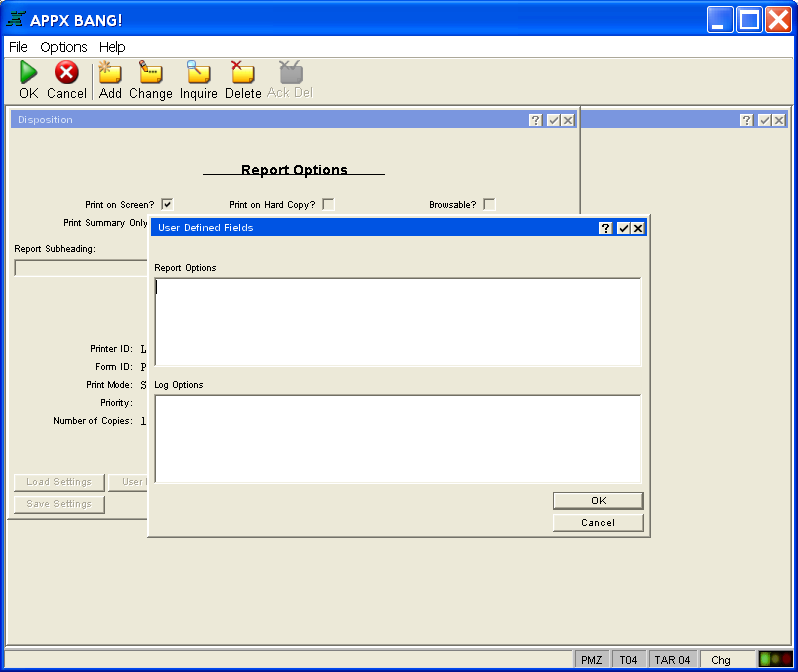
User Defined gives you access to the report and log command strings that are not used by APPX but are passed to the print spooler for use by the printer in paper selection and formatting. See Figure 22.
Submit to BG runs the job as a background process (if supported by your operating system). Running a process in background is helpful if you want to continue working in your current APPX session while the process runs.
Continue runs the job as a foreground process. You will not be able to perform any other tasks in APPX until the process completes.
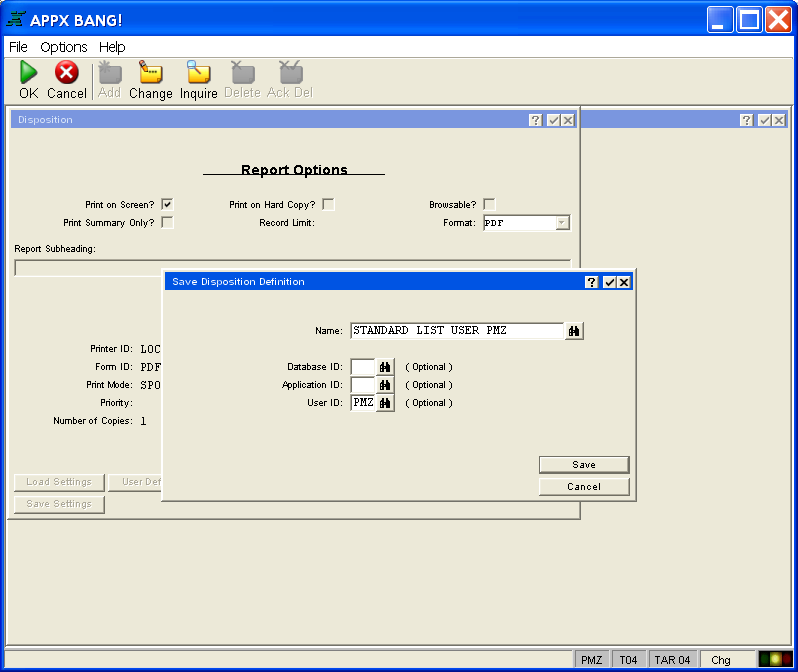
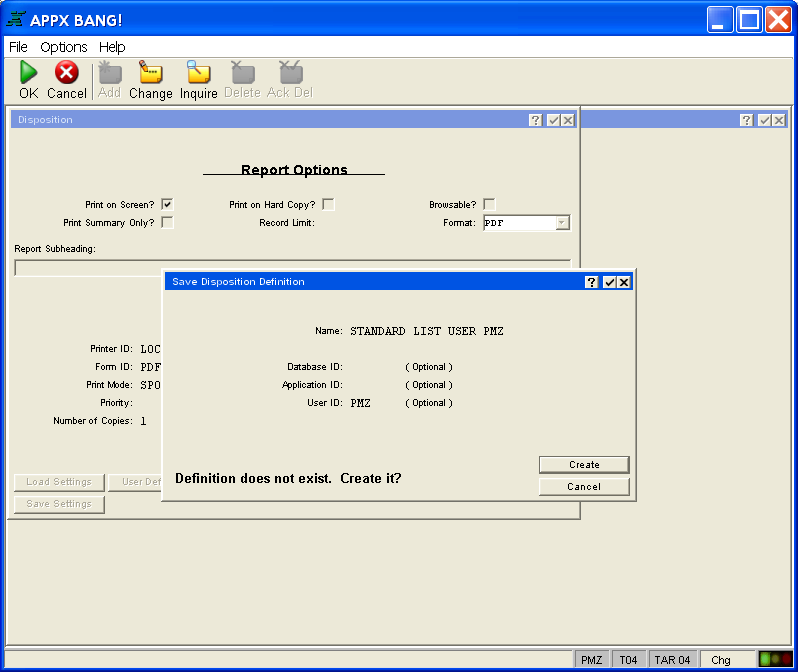
Save Settings allows you to save a disposition you have customized so it can be used in the future without having to modify the standard disposition again. Click this button to assign a name to your disposition as shown in Figure 23. The application ID, database ID and user ID are defaulted but can be changed by clicking the respective scan icon and selecting the desired ID. After selecting ENTER  , either create or cancel the disposition as shown in Figure 24.
Cancel cancels the job.